Camera Wiki
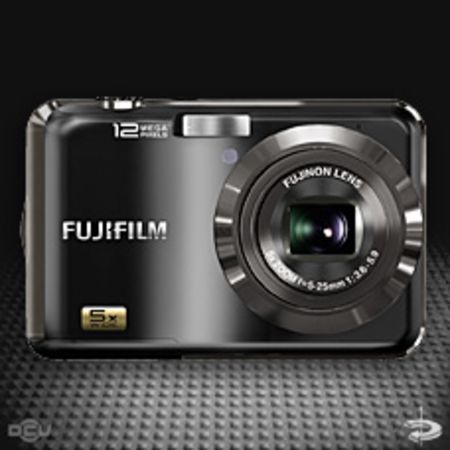
FujifilmFinePixAX200
- Release yearSpec research queued
- TypeFujifilm FinePix compact digital camera
Specs
- Type
- Fujifilm FinePix compact digital camera
- Release year
- Spec research queued
- Megapixels
- 14 MP
- Sensor
- 1/2.3 -in., square-pixel CCD
- Lens
- Fujinon and lens cover 6 Microp hone .................................................40 7 M onitor ............................................................. 3 B Tip: Monitor Brightness Pressing the o button briefly increases monitor brightness, making the display easier to see in bright light. Normal brightness is restored when a photograph is taken. 3 Before You Begin Introduction The Monitor The following indicators may appear in the monitor during shooting and playback: ■ Shooting 400 12 / 31 / 2050 -1 2 3250 F3.3 19 F AF 10:00 AM * * d: indicates that no memory card is inserted and that pictures will be stored in the camera’s internal memory (pg. 5). 11 Blur warning ................................................28 12 Date and time.............................................10 13 Shutter speed 14 Aperture 15 Image size .....................................................58 16 Number of available frames ..............94 17 Sensitivity ......................................................58 18 Image quality ..............................................59 19 White balance ............................................61 20 Battery level .................................................12 21 Exposure compensation .....................60 1 Internal memory indicator* 2 Focus frame .................................................25 3 Silent mode indicator ............................30 4 Continuous shooting mode .............62 5 Intelligent Face Detection indicator .............................................................................23 6 Sh ooting mode .........................................18 7 Flash mode...................................................28 8 Macro (close-up) mode........................27 9 Self-timer indicator .................................31 10 Focus warning ...........................................15 ■ Playback 2 3-1 400 10:00 AM 100-0001 1/250 F3.3 F 1 2/3 1/2 0 5 0 5 Playback mode indicator ............33, 35 6 Protected image .......................................67 7 DPOF print indicator ..............................47 8 Frame number ...........................................77 1 Gift image .....................................................33 2 Silent mode indicator ............................30 3 Red-eye removal indicator ................29 4 Intelligent Face Detection indicator .....................................................................24, 34 First Steps 4 Inserting the Batteries The camera takes two AA alkaline (LR6) batteries (supplied) or two AA rechargeable Ni-MH batteries (sold separately). Insert the batteries in the camera as described below. 1 Open the battery-chamber cover. A Note Be sure the camera is off before opening the battery-chamber cover. C Cautions Do not open the battery- chamber cover when the camera is on. Failure to observe this precaution could result in damage to image files or memory cards. Do not use excessive force when handling the battery-chamber cover. 2 Insert the batteries. Insert the batteries in the orientation shown by the “E” and “F” marks inside the battery chamber. 3 Close the battery-chamber cover. C Cautions Insert the batteries in the correct orientation. Never use batteries with peeling or damaged casing or mix old and new batteries, batteries with different charge levels, or batteries of different types. Failure to observe these precautions could result in the batteries leaking or overheating. Never use manganese or Ni-Cd. Replace AA alkaline batteries with batteries of the same make and grade as those supplied with the camera. If the battery-chamber cover can not be latched easily, confirm the battery orientation first. Do not use excessive force to latch it. Battery casing Battery casing First Steps 5 Inserting a Memory Card Although the camera can store pictures in internal memory, SD memory cards (sold separately) can be used to store additional pictures. When no memory card is inserted , d appears in the monitor and internal memory is used for recording and playback. Note that because camera malfunction could cause internal memory to become corrupted, the pictures in internal memory should periodically be transferred to a computer and saved on the computer hard disk or on removable media such as CDs or DVDs. The pictures in internal memory can also be copied to a memory card (see page 70). To prevent internal memory from becoming full, be sure to delete pictures when they are no longer needed. When a memory card is inserted as described below, the card will be used for recording and playback. ■ Compatible Memory Cards SanDisk SD and SDHC memory cards have been tested and approved for use in the camera. Use a card with a class 4 write speed (4 MB/s) or better when shooting HD movies. A complete list of approved memory cards is available at http://www.fujifilm.com/products/digital_cameras/index.html. Operation is not guaranteed with other cards. The camera can not be used with MultiMediaCard (MMC) or xD-Picture cards. C Caution Memory cards can be locked, making it impossible to format the card or to record or delete images. Before inserting a memory ca rd, slide the write-protect switch to the unlocked position. Write-protect switch 6 Inserting a Memory Card ■ Inserting a Memory Card 1 Turn the camera off, and open the battery-chamber cover. 2 Insert the memory card firmly until you hear (feel) a click. Holding the memory card in the orientation shown below, slide it all the way in. CLICK Be sure card is in correct orientation; do not insert at an angle or use force. If the memory card is not inserted correctly, d will appear in the monitor and images will be recorded to internal memory. 3 Close the battery-chamber cover. First Steps 7 Inserting a Memory Card Removing Memory Cards Be sure the camera is off before opening the battery-chamber cover. Press the card in and then release it slowly. The card can now be removed by hand. C Cautions The memory card may spring out if you remove your finger immediately after pushing the card in. Memory cards may be warm to the touch after being removed from the camera. This is normal and does not indicate a malfunction. 8 Inserting a Memory Card C Cautions F o rmat memory cards before first use, and be sure to reformat all memory cards after using them in a computer or other device. For more information on formatting memory cards, see page 76. Memory cards are small and can be swallowed; keep out of reach of children. If a child swallows a memory card, seek medical assistance immediately. Do not turn the camera off or remove the memory card while the memory card is being formatted or data are being recorded to or deleted from the card. Failure to observe this precaution could damage the card. miniSD or microSD adapters that are larger or smaller than the standard dimensions of an SD card may not eject normally; if the card does not eject, take the camera to an authorized service representative. Do not forcibly remove the card. Do not affix labels to memory cards. Peeling labels can cause camera malfunction. Movie recording may be interrupted with some types of memory card. The data in internal memory may be erased or corrupted when the camera is repaired. Please note that the repairer will be able to view pictures in internal memory. Formatting a memory card or internal memory in the camera creates a folder in which pictures are stored. Do not rename or delete this folder or use a computer or other device to edit, delete, or rename image files. Always use the camera to delete pictures from memory cards and internal memory; before editing or renaming files, copy them to a computer and edit or rename the copies, not the originals. First Steps 9 Turning the Camera on and off Shooting Mode Press the n button to turn the camera on. The lens will extend and the lens cover will open. Press n again to turn the camera off. B Tip: Switching to Playback Mode Press the D button to start playback. Press the shutter button halfway to return to shooting mode. C Cautions Pictures can be affected by fingerprints and other marks on the lens. Keep the lens clean. The n button does not completely disconnect the camera from its power supply. y Playback Mode To turn the camera on and begin playback, press the D button for about a second. Press the D button again to turn the camera off. B Tip: Switching to Shooting Mode To exit to shooting mode, press the shutter button halfway. Press the D button to return to playback. B Tip: Auto Power Off The camera will turn off automatically if no operations are performed for the length of time selected in the AUTO POWER OFF menu (see page 78). 10 Basic Setup A language-selection dialog is displayed the first time the camera is turned on. Set up the camera as described below (for information on resetting the clock or changing languages, see page 72). 1 Choose a language. START MENU SET NO ENGLISH DEUTSCH FRANCAIS 1.1 Press the selector up or down to highlight a language. 1.2 Press MENU/OK. 2 Set the date and time. SET NO DATE / T ME NOT SET 2012 2011 2009 2008 1. 1 12 : 00 AM 2010YY. MM. DD 2.1 Press the selector left or right to highlight the year, month, day, hour, or minute and press up or down to change. To change the order in which the year, month, and day are displayed, highlight the date format and press the selector up or down. 2.2 Press MENU/OK. 3 Check the battery type. A confirmation message for the battery type to be used appears. Alkaline batteries are selected by default. First Steps 11 Basic Setup A Note Go t o the setup menu if you try to set the language, date or battery type again (pg. 72). B Tips: The Camera Clock If the batteries are removed for an extended period, e DATE/TIME and k BATTERY TYPE will be cleared and the language-selection dialog will be displayed. Set up the camera again. If the batteries have been left in the camera for abou t 2 hours or more, the batteries can be removed for about 24 hours without resetting the clock. 12 Basic Photography and Playback Taking Pictures in G (SCENE RECOGNITION) Mode This section describes how to take pictures in G mode. 1 Turn the camera on. Press the n button to turn the camera on. B Tip: SCENE RECOGNITION Simply by pointing the camera to the subject, the camera automatically analyzes and selects the most appropriate setting using scene recognition. 2 Check the battery level. Check the battery level in the monitor. IndicatorIndicator DescriptionDescription q (white) Batteries partially discharged. w (white) Batteries more than half discharged. e (red) Batteries are low. Replace as soon as possible. r (blinks red) Batteries are exhausted. Turn camera off and replace batteries. 13 Basic Photography and Playback Taking Pictures in G (SCENE RECOGNITION) Mode 3 Frame a picture using the zoom control. The camera analyzes a subject based on scene recognition, then an icon appears in the bottom left of the monitor. (The illustration shows when the camera analyzed subject(s) in portrait.) SubjectSubject IconIcon DescriptionDescription PORTRAIT H For soft-toned portraits with natural skin tones. LANDSCAPE I For crisp, clear daylight shots of buildings and landscapes. NIGHT J For night and twilight scenes, using a high sensitivity setting to minimize blurring. MACRO K For clear close-ups of flowers, etc. BACKLIT PORTRAIT T For a subject backlit against the sun, preventing the background from becoming dim. NIGHT PORTRAIT Z For a subject in a dim place, reducing blur. B Tip When a subject can not be analyzed by the camera, LAUTO mode will be set. A Notes B Intelligent Face Detection is turned on automatically. The camera continuously adjusts focus on a face, or the center area of the monitor. Continuous auto focus will be audible and will increase battery drain. Macro mode is set when K is set. 14 Taking Pictures in G (SCENE RECOGNITION) Mode How to use the zoom control Press W to zoom out Press T to zoom in Zoom indicator Holding the Camera Hold the camera steady with both hands and brace your elbows against your sides. Shaking or unsteady hands can blur your shots. To prevent pictures that are out of focus or too dark (underexposed), keep your fingers and other objects away from the lens and flash. Z DIGITAL IS If the subject is poorly lit, blurring caused by camera shake can be reduced by activating the Z DIGITAL IS (pg. 72). Note that blurring may still occur depending on the scene or shooting conditions. A Note When the setting is off, i is displayed. 15 Basic Photography and Playback Taking Pictures in G (SCENE RECOGNITION) Mode Framing Guideline (Best Framing) The images change as shown below if you press the DISP/BACK button. INFORMATION ON INFORMATION OFF BEST FRAMING Best Framing: To use the best framing, position the main subject at the intersection of two lines or align one of the horizontal lines with the horizon. 4 Focus. Press the shutter button halfway to focus. If the camera is able to focus , it will beep twice and the indicator lamp will glow green. If the camera is unable to focus , the red colored focus frame and R will appear in the monitor, and the indicator lamp will blink green. Change the composition or use focus lock (pg. 25). A Note The lens may make a noise when the camera focuses. This is normal. 16 Taking Pictures in G (SCENE RECOGNITION) Mode 5 Shoot. Smoothly press the shutter button the rest of the way down to take the picture. B Tip: The Shutter Button The shutter button has two positions. Pressing the shutter button halfway (q) sets focus and exposure; to shoot, press the shutter button the rest of the way down (w). A Note If the subject is poorly lit, the flash may fire when the picture is taken. To take pictures without the flash, choose another flash mode (pg. 28). The Indicator Lamp Indicator lamp The indicator lamp shows camera status as follows: Indicator lampIndicator lamp Camera statusCamera status Glows green Focus locked. Blinks green Camera shake warning, AF warning, or AE warning (ready to shoot) Blinks green and orange Recording pictures. Additional pictures can be taken. Glows orange Recording pictures. No additional pictures can be taken at this time. Blinks orange Flash charging; flash will not fire when picture is taken. Blinks red Recording or lens error. B Tip: Warnings Detailed warnings appear in the monitor. See pages 89–92 for more information. qw CLICKDouble beep qw CLICKDouble beep 17 Basic Photography and Playback Viewing Pictures Pictures can be viewed in the monitor. When taking important photographs, take a test shot and check the results. 1 Press the D button. The most recent picture will be displayed in the monitor. 12 / 31 / 205012 / 31 / 2050 10: 00 AM10:00 AM 1/2501/250 F3.3F3.3 100-0001100 0001 400400 NN 2 View additional pictures. Press the selector right to view pictures in the order recorded, left to view pictures in reverse order. Press the shutter button to exit to shooting mode. Deleting Pictures To delete the picture currently displayed in the monitor, press the selector up ( I). The following dialog will be displayed. SET ERASE OK? CANCEL OK To delete the picture, highlight OK and press MENU/OK. To exit without deleting the picture, highlight CANCEL and press MENU/OK. B Tip: The Playback Menu Pictures can also be deleted from the playback menu (pg. 38). 18 More on Photography A Shooting Mode Choose a shooting mode according to the scene or type of subject. Selecting a Shooting Mode 1 Press MENU/OK to display the shooting menu. EXIT 1/2SHOOTING MENU SHOOTING MODE IMAGE SIZE IMAGE QUALITY N WHITE BALANCE AUTO ISO AUTO EXP.COMPENSATION ±0 2 Press the selector up or down to highlight A SHOOTING MODE. 3 Press the selector right to display shooting mode options. 4 Press the selector up or down to highlight the desired mode. CANCELSET PORTRAIT Portrait with soft overall tone and beautiful skin tones 5 Press MENU/OK to select the highlighted option. A Note See the restrictions in another supplied document for flash mode setting. 19 More on Photography Shooting Modes G SCENE RECOGNITION Simply by pointing the camera to the subject, the camera automatically analyzes and selects the most appropriate setting using scene recognition. See “Taking Pictures in G (SCENE RECOGNITION) mode” (pg. 12). k AUTO Choose for crisp, clear snapshots. This mode is recommended in most situations. P PROGRAM AE Program AE sets both shutter speed and lens aperture. The camera lets you control camera settings such as exposure compensation (pg. 60), white balance (pg. 61), and ISO sensitivity (pg. 58). A NATURAL & K Th is mode helps ensure good results with backlit subjects and in other situations with difficult lighting. Each time the shutter button is pressed, the camera takes two shots: one shot without the flash to preserve natural lighting, followed immediately by a second shot with the flash. Do not move the camera until shooting is complete. A Notes Do not use where flash photography is prohibited. The flash will fire even in silent mode. Only available if memory remains for two pictures. B NATURAL LIGHT Capture natural light indoors, under low light, or where the flash can not be used. The flash turns off and sensitivity is raised to reduce blur. U PORTRAIT Choose this mode for soft-toned portraits with natural skin tones. A Shooting Mode 20 d BABY MODE Choose for natural skin tones when taking portraits of infants. The flash turns off automatically. K LANDSCAPE Choose this mode for crisp, clear daylight shots of buildings and landscapes. W PANORAMA In this mode, you can take up to three pictures and join them together to form a panorama. Use of a tripod is recommended to assist in composing overlapping shots. 1 Select W. 2 Press the selector up to select a frame, and press the selector left or right to highlight a pan direction and press MENU/OK. 2 1 3 2 3 1 3 Take a photograph. Exposure and white balance for the panorama are set with the first shot. 4 Press MENU/OK. An edge of the picture you have just taken will be displayed at one side of the frame. 22 3311 SELECT FRAME 19 5 Frame the next shot to overlap with the previous picture. 6 Take the second shot as described in steps 3-4 (to create a panorama from only two frames, press the selector up after the second shot). A Shooting Mode 21 More on Photography A Shooting Mode 7 Take the last shot, framing it to overlap the second picture. 8 Press MENU/OK to complete the panorama. 9 Press MENU/OK to save the picture (the individual shots are not saved). Printing Pictures Taken in Panorama Mode Depending on the number of photographs they contain, panoramas may not print correctly on some sizes of paper. Part of the image may not be printed or the image may print with unusually wide margins at the top and bottom or left and right. L SPORT Choose this mode when photographing moving subjects. Priority is given to faster shutter speeds. D NIGHT A high sensitivity setting is selected automatically to minimize blurring for recording night and twilight scenes. U NIGHT (TRIPOD) Slow shutter speeds are used to record night scenes. Use of a tripod is recommended to prevent camera shake. W FIREWORKS Slow shutter speeds are used to capture the expanding burst of light from a firework. Press the selector left or right to choose a shutter speed. Use of a tripod is recommended to prevent blur. The flash turns off automatically. 22 E SUNSET Choose this mode to record the vivid colors in sunrises and sunsets. F SNOW Choose for crisp, clear shots that capture the brightness of scenes dominated by shining white snow. G BEACH Choose for crisp, clear shots that capture the brightness of sunlit beaches. I PARTY Capture indoor background lighting under low- light conditions. O FLOWER Choose for vivid close-ups of flowers. The camera focuses in the macro range and the flash turns off automatically. P TEXT Take clear pictures of text or drawings in print. The camera focuses in the macro range. A Shooting Mode 23 More on Photography Intelligent Face Detection Intelligent Face Detection allows the camera to automatically detect human faces and set focus and exposure for a face anywhere in the frame for shots that emphasize portrait subjects. Choose for group portraits to prevent the camera from focusing on the background. Intelligent Face Detection also offers a red-eye removal option for removing “red-eye” effects caused by the flash. 1 Turn Intelligent Face Detection on. 1.1 Press MENU/OK to display the shooting menu. EXIT 1/2SHOOTING MENU SHOOTING MODE IMAGE SIZE IMAGE QUALITY N WHITE BALANCE AUTO ISO AUTO EXP.COMPENSATION ±0 1.2 Press the selector up or down to highlight 3 FACE DETECTION. 1.3 Press the selector right to display Intelligent Face Detection options. 1.4 Press the selector up or down to highlight the desired option. 1.5 Press MENU/OK to select the highlighted option and return to shooting mode. B icon appears in monitor when Intelligent Face Detection is on. A Note When removing red-eye effect, select ON for a RED EYE REMOVAL in the setup menu (pg. 74). 2 Frame the picture. If a face is detected, it will be indicated by a green border. If there is more than one face in the frame, the camera will select the face closest to the center; other faces are indicated by white borders. Green border Green border 24 Intelligent Face Detection 3 Focus. Press the shutter button halfway to set focus and exposure for the subject in the green border. C Cautions If no face is detected when the shutter button is pressed halfway (pg. 85), the camera will focus on the subject at the center of the display and red-eye will not be removed. In each shooting mode, the camera will detect and focus on faces but exposure will be optimized for the entire scene rather than the selected portrait subject. 4 Shoot. Press the shutter button all the way down to shoot. C Caution If the subject moves as the shutter button is pressed, their face may not be in the area indicated by the green border when the picture is taken. B Tip: Red-Eye Removal Select ON for the R SAVE ORG IMAGE option in the setup menu (pg. 72) to save unprocessed copies of pictures created with red-eye removal. Intelligent Face Detection Intelligent Face Detection is recommended when using the self-timer for group- or self- portraits (pp. 31–32). 77 The following functions can be used with Intelligent Face Detection. RED EYE REMOVAL (pg. 66)/IMAGE SEARCH (pg. 36)/SLIDE SHOW (pg. 65)/IMAGE DISP. > ZOOM (CONTINUOUS) (pg. 76)/PRINT ORDER (DPOF) (pg. 45)/CROP (pg. 68) 25 More on Photography Focus Lock To compose photographs with off-center subjects: 1 Position the subject in the focus frame. 2 Focus. Press the shutter button halfway to set focus and exposure. Focus and exposure will remain locked while the shutter button is pressed halfway (AF/AE lock). 250250 F3.3F3.3Press halfway Repeat steps 1 and 2 as desired to refocus before taking the picture. 3 Recompose the picture. Keeping the shutter button pressed halfway, recompose the picture. 250250 F3 3F3.3 4 Shoot. Press the shutter-release button the rest of the way down to take the picture. Press the rest of the way down 26 Focus Lock Autofocus Although the camera boasts a high-precision autofocus system, it may be unable to focus on the subjects listed below. If the camera is unable to focus using autofocus, use focus lock (pg. 25) to focus on another subject at the same distance and then recompose the photograph. Very shiny subjects such as mirrors or car bodies. Fast-moving subjects. Subjects photographed through a window or other reflective object. Dark subjects and subjects that absorb rather than reflect light, such as hair or fur. Insubstantial subjects, such as smoke or flame. Subjects that show little contrast with the background (for example, subjects in clothing that is the same color as the background). Subjects positioned in front of or behind a high-contrast object that is also in the focus frame (for example, a subject photographed against a backdrop of highly contrasting elements). 27 More on Photography L Macro mode (Close-ups) For close-ups, press the selector left (L). The selection changes each time the selector is pressed. MACRO OFF When macro mode is in effect, the camera focuses on subjects near the center of the monitor. Use the zoom buttons to frame pictures. A Note Use of a tripod is recommended to prevent blur caused by camera shake. 28 K Using the Flash (Intelligent Flash) When the flash is used, the camera’s Intelligent Flash system instantly analyzes the scene based on such factors as the brightness of the subject, its position in the frame, and its distance from the camera. Flash output and sensitivity are adjusted to ensure that the main subject is correctly exposed while preserving the effects of ambient background lighting, even in dimly-lit indoor scenes. Use the flash when lighting is poor, for example when shooting at night or indoors under low light. 1 Choose a flash mode. Press the selector right (K). The flash mode changes each time the selector is pressed; in modes other than 4, the current mode is indicated by an icon in the display. Choose from the following options: ModeMode DescriptionDescription 4 (AUTO FLASH) The flash fires when required. Recommended in most situations. K (FORCED FLASH) The flash fires whenever a picture is taken. Use for backlit subjects or for natural coloration when shooting in bright light. W (SUPPRESSED FLASH) The flash does not fire even when the subject is poorly lit. 0 will appear in the monitor at slow shutter speeds to warn that pictures may be blurred. Use of a tripod is recommended. T (SLOW SYNCHRO) Capture both the main subject and the background under low light (note that brightly lit scenes may be overexposed). 29 More on Photography 2 Focus. Press the shutter button halfway to focus. If the flash will fire, X will be displayed when the shutter button is pressed halfway. At slow shutter speeds, 0 will appear in the display to warn that pictures may be blurred; use of a tripod is recommended. 3 Shoot. Press the shutter button the rest of the way down to shoot. C Caution The flash may fire several times with each shot. Do not move the camera until shooting is complete. Red-Eye Removal When Intelligent Face Detection is active (pg. 23), and ON is selected for a RED EYE REMOVAL in the setup menu (pg. 72), red-eye removal is available in V, U, and Z. Red-eye removal minimizes “red-eye” caused when light from the flash is reflected from the subject’s retinas as shown in the illustration at right. K Using the Flash (Intelligent Flash) 30 U Silent Mode In situations in which camera sounds or light from the flash may be unwelcome, press the DISP/BACK button until U is displayed in the monitor. The camera speaker, shooting indicator, flash, and indicator and self-timer lamps turn off (note that the flash will still fire in A mode). Flash and volume settings (pg. 77) can not be adjusted while silent mode is in effect. To restore normal operation, press the DISP/BACK button until the U icon is no longer displayed. K Using the Flash (Intelligent Flash) 31 More on Photography J Using the Self-Timer The camera offers a ten-second timer that allows photographers to appear in their own photographs, and a two-second timer that can be used to avoid blur caused by the camera moving when the shutter button is pressed. 1 Set the timer. Press the selector down (J). The selection changes each time the selector is pressed. The current self-timer mode is displayed in the monitor. OFF OFF Choose from y (self-timer off), c (10 s delay), or b (2 s delay) 2 Focus. Press the shutter button halfway to focus. C Caution Stand behind the camera when using the shutter button. Standing in front of the lens can interfere with focus and exposure. 3 Start the timer. Press the shutter button the rest of the way down to start the timer. The display in the monitor shows the number of seconds remaining until the shutter is released. To stop the timer before the picture is taken, press DISP/BACK. 99 32 The self-timer lamp on the front of the camera will blink immediately before the picture is taken. If the two-second timer is selected, the self-timer lamp will blink as the timer counts down. Intelligent Face Detection Because it ensures that the faces of portrait subjects will be in focus, Intelligent Face Detection (pg. 23) is recommended when using the self-timer for group portraits or self-portraits. To use the self-timer with Intelligent Face Detection, set the timer as described in Step 1 and then press the shutter button all the way down to start the timer. The camera will detect faces while the timer is counting down and adjust focus and exposure immediately before the shutter is released. Be careful not to move until the picture has been recorded. J Using the Self-Timer 33 More on Playback Single-Frame Playback To view the most recent picture in the monitor, press the D button. 12 / 31 / 205012 / 31 / 2050 10: 00 AM10:00 AM 1/2501/250 F3 3F3.3 100-0001100 0001 400400 NN Press the selector right to view pictures in the order recorded, left to view pictures in reverse order. Keep the selector pressed to scroll rapidly to the desired frame. Choosing a Display Format In playback mode, press DISP/BACK to select a playback display format. The selection changes each time DISP/BACK is pressed. 100-0001100-0001 400400 NN 12 / 31 / 205012 / 31 / 2050 10: 00 AM10:00 AM 1/2501/250 F3.3F3.3 INFORMATION ON INFORMATION OFF A Note Pictures taken using other cameras are indicated by a e (“gift image”) icon during playback. 34 Single-Frame Playback y Playback Zoom Press T to zoom in on images displayed in single-frame playback; press W to zoom out. Press W to zoom out Press T to zoom in Zoom indicator When the picture is zoomed in, the selector can be used to view areas of the image not currently visible in the display. Navigation window shows portion of image currently displayed in monitor Press DISP/BACK to exit zoom. A Notes The maximum zoom ratio varies with image size. Playback zoom is not available with images saved or cropped at the size of p, or copies created with j RESIZE (pg. 69). Intelligent Face Detection Pictures taken with Intelligent Face Detection (pg. 23) are indicated by a B icon. Press the F button to zoom in on the subject selected with Intelligent Face Detection. You can then use the zoom control to zoom in and out. BACKFACE ZOOM 35 More on Playback Multi-Frame Playback To change the number of images displayed, press W when a picture is shown full-frame in the monitor. 10: 00 AM10:00 AM12 / 31 / 20501 2/3 1/2 0 5 0 Press W to increase the number of pictures displayed to one frame with previous and next, two, nine, and a hundred. Press T to reduce the number of images displayed. Use the selector to highlight images and press MENU/OK to view the highlighted image full frame. In the nine- and hundred-frame displays, press the selector up or down to view more pictures. B Tip: Two-Frame Display Two-frame display can be used to compare pictures taken in A mode. 36 V Image Search Image Search based on categories Search for pictures by date, subject, scene, and file type. 1 Press MENU/OK to display the playback menu. 2 Press the selector up or down to highlight V IMAGE SEARCH. 3 Press MENU/OK to display the search category. 4 Press the selector up or down to highlight the desired search category. OptionOption DescriptionDescription BY DATE Show images based on the specified date. BY FACE Show images based on specified face information. BY SCENE Show images based on the specified scene mode. BY TYPE OF DATA Show images based on whether still pictures or movies. 5 Press MENU/OK to select the highlighted search category. A detailed search list will be displayed. 6 Select a category in the list. Specified Images will be displayed. 37 More on Playback g y g Using Playback Menu with Image Search Three playback menus can be performed with image search mode. 1 Press MENU/OK while the search results are displayed. The playback menu will be displayed. 2 Press the selector up or down to highlight the desired menu item. 3 Press MENU/OK to select the highlighted menu. B Tips For each operation, refer to the page listed. OptionOption See PageSee Page M ERASE 38 O PROTECT 67 q SLIDE SHOW 65 Select EXIT SEARCH to go back to the normal playback mode. V Image Search 38 M Deleting Pictures The ERASE option in the playback menu can be used to delete still pictures and movies, increasing the amount of space available on the memory card or in internal memory (for information on deleting pictures in single-frame playback, see page 17). Note that deleted pictures can not be recovered. Copy important pictures to a computer or other storage device before proceeding. 1 Press MENU/OK to display the playback menu. 1/2PLAYBACK MENU RED EYE REMOVAL ERASE IMAGE SEARCH SLIDE SHOW PROTECT CROP EXIT 2 Press the selector up or down to highlight ERASE. 3 Press the selector right to display delete options. 1/2PLAYBACK MENU RED E ERAS IMAG SLIDE PROT CROP BACK FRAME ALL FRAMES 4 Press the selector up or down to highlight FRAME or ALL FRAMES. 5 Press MENU/OK to display options for the selected item (see pg. 39). B Tips: Deleting Pictures When a memory card is inserted, pictures will be deleted from the memory card; otherwise, pictures will be deleted from internal memory. Protected pictures can not be deleted. Remove protection from any pictures you wish to delete (pg. 67). If a message appears stating that the selected images are part of a DPOF print order, press MENU/OK to delete the pictures. 39 More on Playback ■ FRAME : Deleting Selected Images Selecting FRAME displays the dialog shown at right. YES CANCEL ERASE OK? Press the selector left or right to scroll through pictures and press MENU/OK to delete the current picture (the picture is deleted immediately; be careful not delete the wrong picture). Press DISP/BACK to exit when all the desired pictures have been deleted. ■ ALL FRAMES : Deleting All Images Selecting ALL FRAMES displays the confirmation shown at right. ERASE ALL OK? IT MAY TAKE A WHILE SET CANCEL OK Highlight OK and press MENU/ OK to delete all unprotected pictures. The dialog shown at right is displayed during deletion. Press DISP/BACK to cancel before all pictures have been deleted (any pictures deleted before the button was pressed can not be recovered). CANCEL M Deleting Pictures 40 Movies A Recording Movies Shoot short movies with sound. Sound is recorded via the built-in microphone; do not cover the microphone during recording. 1 Press MENU/OK to display the shooting menu and select A MOVIE for A SHOOTING MODE (pg. 18). STANDBY 12s Time available is displayed in monitor Choosing the Frame Size To choose the frame size, press MENU/OK and select o QUALITY. Choose a pixel size in the following: )1280 (1280 × 720) for high definition movies ! (640 × 480) for standard definition movies 9 (320 × 240) for longer movies 1/1SHOOTING MENU QUAL 10m59s 15m00s 5m00s280 2 Frame the scene using the zoom buttons. STAN BY 12s Zoom indicator Zoom control during movie recording The camera lets you zoom in and out during movie recording. Select the type of zoom available in movie mode from the setup menu (pg. 72). OPTICAL: sounds will not be recorded during zoom operation. DIGITAL: it may produce lower quality images than optical zoom. 41 Movies 3 Press the shutter button all the way down to start recording. REC 12s REC and time remaining are displayed in monitor A Notes Focus is set when recording begins; exposure and white balance are adjusted automatically throughout recording. The color and brightness of the image may vary from that displayed before recording begins. Some operating noise of the camera may be recorded during movie shooting. 4 Press the shutter button to end recording. Recording ends automatically when the movie reaches maximum length or memory is full. B Tip There is no need to keep the shutter button pressed during recording. C Caution Vertical or horizontal streaks may appear in movies containing very bright subjects. This is normal and does not indicate a malfunction. A Recording Movies 42 D Viewing Movies During playback (pg. 33), movies are displayed in the monitor as shown at right. The following operations can be performed while a movie is displayed: PLAY 100-006100 006 12 / 31 / 205012 / 31 / 2050 10: 00 AM10:00 AM OperationOperation DescriptionDescription Start/pause playback Press the selector down to start playback. Press again to pause. End playback/ delete Press the selector up to end playback. If playback is not in progress, pressing the selector up will delete the current movie. Advance/ rewind Press the selector right to advance, left to rewind. If playback is paused, the movie will advance or rewind one frame each time the selector is pressed. Adjust volume Press MENU/OK to pause playback and display volume controls. Press the selector up or down to adjust the volume; press MENU/OK again to resume playback. Progress is shown in the monitor during playback. 15s STOP PAUSE Progress bar C Caution Do not cover the speaker during playback. 43 Connections Viewing Pictures on TV Connect the camera to a TV and tune the television to the video channel to show pictures to a group. Connect an A/V cable (optional), as shown below. Connect yellow plug to video-in jack Connect white plug to audio-in jack Insert an optional A/V cable into the USB multi-connector of the camera. Press D for about a second to turn the camera on. The camera monitor turns off and pictures and movies are played back on the TV. Note that the camera volume controls have no effect on sounds played on the TV; use the television volume controls to adjust the volume. A Notes Use fully charged batteries for extended playback. Image quality drops during movie playback. C Cautions When making the A/V cable connection, be sure the connectors are fully inserted. HD movies are played back as standard definition movies on the TV if using an optional A/V cable. To play back High Definition movies on HDTV, optional accessories are required. For more information, please refer to the following URL. http://www.fujifilm.com/products/digital_cameras/index html 44 Printing Pictures via USB If the printer supports PictBridge, the camera can be connected directly to the printer and pictures can be printed without first being copied to a computer. Note that depending on the printer, not all the functions described below may be supported. Connecting the Camera 1 Connect the supplied USB cable as shown and turn the printer on. 2 Press the D button for about a second to turn the camera on. w USB will be displayed in the monitor, followed by the PictBridge display shown below at right. USB 00 OK SET FRAME PICTBRIDGE TOTAL: 00000 SHEETS Printing Selected Pictures 1 Press the selector left or right to display a picture you wish to print. 2 Press the selector up or down to choose the number of copies (up to 99). 3 Repeat steps 1–2 to select additional pictures. Press MENU/OK to display a confirmation dialog when settings are complete. PRINT THESE FRAMES TOTAL: 9 SHEETS YES CANCEL 4 Press MENU/OK to start printing. 45 Connections Printing Pictures via USB B Tip: Printing the Date of Recording To pr int the date of recording on pictures, press DISP/BACK in steps 1–2 to display the PictBridge menu (see “Printing the DPOF Print Order” on page 45). Press the selector up or down to highlight PRINT WITH DATE y and press MENU/OK to return to the PictBridge display (to print pictures without the date of recording, select PRINT WITHOUT DATE). The date will not be printed if the camera clock was not set when the picture was taken. A Note If no pictures are selected when the MENU/OK button is pressed, the camera will print one copy of the current picture. Printing the DPOF Print Order To print the print order created with r PRINT ORDER (DPOF) in the playback menu (pg. 63): 1 In the PictBridge display, press DISP/ BACK to open the PictBridge menu. PRINT DPOF PRINT W TH DATE PRINT W THOUT DATE PICTBR DGE 2 Press the selector up or down to highlight x PRINT DPOF. 3 Press MENU/OK to display a confirmation dialog. YES CANCEL PR NT DPOF OK? TOTAL: 9 SHEETS 46 Printing Pictures via USB 4 Press MENU/OK to start printing. During Printing The message shown at right is displayed during printing. Press DISP/BACK to cancel before all pictures are printed (depending on the printer, printing may end before the current picture has printed). If printing is interrupted, press D to turn the camera off and then on again. PR NT NG CANCEL Disconnecting the Camera Confirm that “PRINTING” is not displayed in the monitor and press D to turn the camera off. Disconnect the USB cable. A Notes Use fully charged batteries to power the camera for extended periods. Print pictures from internal memory or a memory card that has been formatted in the camera. If the printer does not support date printing, the PRINT WITH DATE y option will not be available in the PictBridge menu and the date will not be printed on the pictures in the DPOF print order. When pictures are printed via direct USB connection, page size, print quality, and border selections are made using the printer. 47 Connections Printing Pictures via USB The r PRINT ORDER (DPOF) option i n the playback menu can be used to create a digital “print order” for PictBridge-compatible printers (pg. 44) or devices that support DPOF. DPOF DPOF (Digital Print Order Format) is standard that allows pictures to be printed from “print orders” stored in internal memory or on a memory card. The information in the order includes the pictures to be printed and the number of copies of each picture. ■ WITH DATE y / WITHOUT DATE To modify the DPOF print order, select r PRINT ORDER ( DPOF) in the playback menu and press the selector up or down to highlight WITH DATE y or WITHOUT DATE. 2/2PLAYBACK MENU RESI COPY PR N IMAG WITH DATE WITHOUT DATE RESET ALL WITH DATE y: Print date of recording on pictures. WITHOUT DATE: Print pictures without date. Press MENU/OK and follow the steps below. 1 Press the selector left or right to display a picture you wish to include in or remove from the print order. Creating a DPOF Print Order 48 Printing Pictures via USB 2 Press the selector up or down to choose the number of copies (up to 99). To remove a picture from the order, press the selector down until the number of copies is 0. SHEETS DPOF: 00001 01 PRINT ORDER (DPOF) SETFRAME Total number of prints Number of copies B Tip: Intelligent Face Detection If the current picture was created with Intelligent Face Detection, pressing F sets the number of copies to the number of faces detected. 3 Repeat steps 1–2 to complete the print order. Press MENU/OK to save the print order when settings are complete, or DISP/BACK to exit without changing the print order. 4 The total number of prints is displayed in the monitor. Press MENU/OK to exit. The pictures in the current print order are indicated by a x icon during playback. 49 Connections Printing Pictures via USB A Notes Re mo ve the memory card to create or modify a print order for the pictures in internal memory. Print orders can contain a maximum of 999 pictures. If a memory card is inserted containing a print order created by another camera, the message shown at right will be displayed. Pressing MENU/OK cancels the print order; a new print order must be created as described above. Whether WITH DATE y/ WITHOUT DATE is available may depend on the printer setting. Check the printer. ■ RESET ALL To cancel the current print order, select RESET ALL in the r PRINT ORDER (DPOF) menu. The confirmation shown at right will be displayed; press MENU/OK to remove all pictures from the order. YES CANCEL RESET DPOF OK? YES CANCEL RESET DPOF OK? YES CANCEL RESET DPOF OK? YES CANCEL RESET DPOF OK? 50 Viewing Pictures on a Computer The supplied software can be used to copy pictures to a computer, where they can be stored, viewed, organized, and printed. Before proceeding, install the software as described below. Do NOT connect the camera to the computer until installation is complete. Installing the Software Two applications are supplied: MyFinePix Studio for Windows and FinePixViewer for the Macintosh. Installation instructions for Windows are on pages 50–51, those for the Macintosh on pages 52–53. Windows: Installing MyFinePix Studio 1 Confirm that the computer meets the following system requirements: Windows 7*Windows 7* Windows Vista*Windows Vista* Windows XP*Windows XP* CPUCPU 3 GHz Pentium 4 or better 2 GHz Pentium 4 or better RAMRAM 1 GB or more 512 MB or more Free disk spaceFree disk space 15 GB or more 2 GB or more VideoVideo 1,024 × 768 pixels or more with 24-bit color or better A graphics processing unit (GPU) that supports DirectX 7 or later OtherOther Built-in USB port recommended. Operation is not guaranteed other USB ports. Internet connection (56 kbps or faster recommended) required to use FinePix Internet Service; Internet connection and e-mail software required to use e-mail option. * Other versions of Windows are not supported. Only pre-installed operating systems are supported; operation is not guaranteed on home-built computers or computers that have been upgraded from earlier versions of Windows. 51 Connections Viewing Pictures on a Computer 2 Start the computer. Log in to an account with administrator privileges before proceeding. 3 Exit any applications that may be running and insert the installer CD in a CD-ROM drive. Windows 7/Windows Vista If an AutoPlay dialog is displayed, click SETUP .EXE. A “User Account Control” dialog will then be displayed; click Yes (Windows 7) or click Allow (Windows Vista). The installer will start automatically; click Installing MyFinePix Studio and follow the on-screen instructions to install MyFinePix Studio. If the Installer Does Not Start Automatically If the installer does not start automatically, select Computer or My Computer from the Start menu, then double-click the FINEPIX CD icon to open the FINEPIX CD window and double-click SETUP or SETUP .EXE. 4 If prompted to install Windows Media Player or DirectX, follow the on-screen instructions to complete installation. 5 Remove the installer CD from the CD-ROM drive when installation is complete. Store the installer CD in a dry location out of direct sunlight in case you need to re-install the software. The version number is printed at the top of the CD label for reference when updating the software or contacting customer support. Installation is now complete. Proceed to “Connecting the Camera” on page 54. 52 Viewing Pictures on a Computer Macintosh: Installing FinePixViewer 1 Confirm that the computer meets the following system requirements: CPUCPU PowerPC or Intel OSOS Pre-installed versions of Mac OS X version 10.3.9–10.6 (for the latest information, visit http://www.fujifilm. com/) RAMRAM 256 MB or more Free disk spaceFree disk space A minimum of 200 MB required for installation with 400 MB available when FinePixViewer is running VideoVideo 800 × 600 pixels or more with thousands of colors or better OtherOther Built-in USB port recommended. Operation is not guaranteed other USB ports. Internet connection (56 kbps or faster recommended) required to use FinePix Internet Service; Internet connection and e-mail software required to use e-mail option. 2 After starting the computer and quitting any applications that may be running, insert the installer CD in a CD-ROM drive and double-click Installer for Mac OS X. 3 An installer dialog will be displayed; click Installing FinePixViewer to start installation. Enter an administrator name and password when prompted and click OK, then follow the on-screen instructions to install FinePixViewer. Click Exit to quit the installer when installation is complete. 53 Connections Viewing Pictures on a Computer 4 Remove the installer CD from the CD-ROM drive. Note that you may be unable to remove the CD if Safari is running; if necessary, quit Safari before removing the CD. Store the installer CD in a dry location out of direct sunlight in case you need to re-install the software. The version number is printed at the top of the CD label for reference when updating the software or contacting customer support. 5 Mac OS X 10.5 or earlier: Open the “Applications” folder, start Image Capture, and select Preferences… from the Image Capture application menu. The Image Capture preferences dialog will be displayed. Choose Other… in the When a camera is connected, open menu, then select FPVBridge in the “Applications/FinePixViewer” folder and click Open. Quit Image Capture. Mac OS X 10.6: Connect the camera and turn it on. Open the “Applications” folder and start Image Capture. The camera will be listed under DEVICES; select the camera and choose FPVBridge from the Connecting this camera opens menu and click Open. Quit Image Capture. Installation is now complete. Proceed to “Connecting the Camera” on page 54. 54 Viewing Pictures on a Computer 1 If the pictures you wish to copy are stored on a memory card, insert the card into the camera (pg. 6). If no card is inserted, pictures will be copied from internal memory. A Note Windows users may require the Windows CD when starting the software for the first time. C Caution Loss of power during transfer could result in loss of data or damage to internal memory or the memory card. Use fully charged batteries. 2 Turn the camera off and connect the supplied USB cable as shown, making sure the connectors are fully inserted. Connect the camera directly to the computer; do not use a USB hub or keyboard. 3 Press the D button for about a second to turn the camera on. MyFinePix Studio or FinePixViewer will start automatically; follow the on-screen instructions to copy pictures to the computer. To exit without copying pictures, click Cancel. C Caution If the software does not start automatically, the software may not be correctly installed. Disconnect the camera and reinstall the software. For more information on using the supplied software, start the application and select the appropriate option from the Help menu. Connecting the Camera 55 Connections Viewing Pictures on a Computer C Cautions I f a memor y card containing a large number of images is inserted, there may be a delay before the software starts and you may be unable to import or save images. Use a memory card reader to transfer pictures. Make sure that the computer does not display a message stating that copying is in progress and that the indicator lamp is out before turning the camera off or disconnecting the USB cable (if the number of images copied is very large, the indicator lamp may remain lit after the message has cleared from the computer display). Failure to observe this precaution could result in loss of data or damage to internal memory or the memory card. Disconnect the camera before inserting or removing memory cards. In some cases, it may not be possible to access pictures saved to a network server using the supplied software in the same way as on a standalone computer. The user bears all applicable fees charged by the phone company or Internet service provider when using services that require an Internet connection. Disconnecting the Camera After confirming that the indicator lamp is out, follow the on-screen instructions to turn the camera off and disconnect the USB cable. Uninstalling the Supplied Software Only uninstall the supplied software when it is no longer required or before beginning reinstallation. After quitting the software and disconnecting the camera, drag the “FinePixViewer” folder from “Applications” into the Trash and select Empty Trash in the Finder menu (Macintosh), or open the control panel and use “Programs and Features” (Windows 7/ Windows Vista) or “Add or Remove Programs” (Windows XP) to uninstall MyFinePix Studio. Under Windows, one or more confirmation dialogs may be displayed; read the contents carefully before clicking OK. 56 Menus The Shooting Menu The shooting menu is used to adjust settings for a wide range of shooting conditions. Using the Shooting Menu 1 Press MENU/OK to display the shooting menu. EXIT 1/2SHOOTING MENU SHOOTING MODE IMAGE SIZE IMAGE QUALITY N WHITE BALANCE AUTO ISO AUTO EXP.COMPENSATION ±0 2 Press the selector up or down to highlight the desired menu item. 3 Press the selector right to display options for the highlighted item. 1/2SHOOTING MENU AUTO AUTO IMAG ±0 FINE NORMAL 4 Press the selector up or down to highlight the desired option. 5 Press MENU/OK to select the highlighted option. 6 Press DISP/BACK to exit from the menu. 57 Menus The Shooting Menu Shooting Menu Options Menu itemMenu item DescriptionDescription OptionsOptions DefaultDefault 1/21/2 A SHOOTING MODE Choose a shooting mode according to the type of subject (pg. 18). G/k/P/A/A/B/U/d/ K/W/L/D/U/W/E/F/ G/I/O/P G 5 EXP . COMPENSATION Adjust exposure for bright, dark, or high- contrast scenes (pg. 60). –2 EV to +2 EV in increments of 1/3 EV ±0 n ISO Adjust ISO sensitivity (pg. 58). Choose higher values when the subject is poorly lit. AUTO / 3200 / 1600 / 800 / 400 / 200 / 100 AUTO o IMAGE SIZE Choose image size and quality (pg. 58). AX290/AX280/AX260/ AX250/AV190/AV180/ AV160/AV150 i/y 3:2/ r16:9/7/n/ m16:9/m/p i AX240/AX230/AX210/ AX200/AV140/AV130/ AV110/AV100 y/! 3:2/ g16:9/0/n/ m16:9/m/p y T IMAGE QUALITY Choose image quality (pg. 59). FINE / NORMAL NORMAL C WHITE BALANCE Adjust color for different light sources (pg. 61). AUTO /p/q/s/t/u/r AUTO 2/22/2 E CONTINUOUS Shoot a series of pictures (pg. 62). m/OFF OFF 3 FACE DETECTION Turn Intelligent Face Detection on or off (pg. 23). ON / OFF — 58 The Shooting Menu n ISO Control the camera’s sensitivity to light. Higher values can be used to reduce blur when lighting is poor; note, however, that mottling may appear in pictures taken at high sensitivities. If AUTO is selected, the camera will adjust sensitivity automatically in response to shooting conditions. Settings other than AUTO are shown by an icon in the display. o IMAGE SIZE Choose the size and quality at which still pictures are recorded. Large pictures can be printed at large sizes with no drop in quality; small pictures require less memory, allowing more pictures to be recorded. OptionOption Prints at sizes up toPrints at sizes up to i, y, !, r 31 × 23 cm (12 × 9 in.) or 31 × 21 cm (12 × 8 in.) g, 7, 0 22 × 16 cm (8.5 × 6.5 in.) n 17 × 13 cm (7 × 5 in.) m 14 × 10 cm (5.3 × 4 in.) p 5 × 4 cm (2 × 1.5 in.). Suited to e-mail or the web. The number of pictures that can be taken at current settings (pg. 94) is displayed to the top right in the monitor. 59 Menus The Shooting Menu Aspect Ratio Pictures with an aspect ratio of 4 : 3 have the same proportions as the camera display. Pictures with an aspect ratio of 3 : 2 have the same proportions as a frame of 35-mm film, while an aspect ratio of 16 : 9 is suited to display on High Definition (HD) devices. 4 : 3 3 : 2 16 : 9 A Note Image quality is not reset when the camera is turned off or another shooting mode is selected. T IMAGE QUALITY Choose how much image files are compressed. Select FINE (low compression) for higher image quality, NORMAL (high compression) to increase the number of pictures that can be stored. 60 The Shooting Menu Use exposure compensation when photographing very bright, very dark, or high- contrast subjects. Choose positive (+) values to increase exposure Choose negative (–) values to reduce exposure Choosing an Exposure Compensation Value Backlit subjects : choose values from +2/3 EV to + 12/3 EV (for an explanation of the term “EV”, see the Glossary on page 93) Highly reflective subjects or very bright scenes (e.g., snowfields): +1 E V Scenes that are mostly sky : +1 EV Spotlit subjects (particularly if photographed against dark backgrounds): –2/3 EV Subjects with low reflectivity (pine trees or dark- colored foliage): –2/3 EV A Note At settings other than ±0, a 5 icon is displayed in the monitor. Exposure compensation is not reset when the camera is turned off; to restore normal exposure control, choose a value of ±0. 5 EXP . COMPENSATION 61 Menus The Shooting Menu C WHITE BALANCE For natural colors, choose a setting that matches the light source (for an explanation of “white balance,” see the Glossary on page 93). OptionOption DescriptionDescription AUTO White balance adjusted automatically. p For subjects in direct sunlight. q For subjects in the shade. s Use under “daylight” fluorescent lights. t Use under “warm white” fluorescent lights. u Use under “cool white” fluorescent lights. r Use under incandescent lighting. If AUTO does not produce the desired results (for example, when taking close-ups), choose the option that matches the light source. A Note Results vary with shooting conditions. Play pictures back after shooting to check colors in the monitor. 62 The Shooting Menu E CONTINUOUS (Continuous shooting) Capture motion in a series of pictures. The camera takes up to three pictures while the shutter- release button is pressed. A Notes Frame rate varies with shutter speed. Focus and exposure are determined by the first frame in each series. The number of pictures that can be recorded depends on the memory available. Additional time may be required to record pictures when shooting ends. The pictures are displayed in the monitor while recording is in progress. STORING STORING 63 Menus The Playback Menu The playback menu is used to manage the pictures in internal memory or on the memory card. g Using the Playback Menu 1 Press D to enter playback mode (pg. 33). 2 Press MENU/OK to display the playback menu. 1/2PLAYBACK MENU RED EYE REMOVAL ERASE IMAGE SEARCH SLIDE SHOW PROTECT CROP EXIT 3 Press the selector up or down to highlight the desired menu item. 4 Press the selector right to display options for the highlighted item. 1/2PLAYBACK MENU RED E ERAS IMAG SLIDE PROT CROP BACK FRAME ALL FRAMES 5 Press the selector up or down to highlight the desired option. 6 Press MENU/OK to select the highlighted option. 64 The Playback Menu y Playback Menu Options The following options are available: OptionOption DescriptionDescription V IMAGE SEARCH Search images based on categories (pg. 36). M ERASE Delete all or selected pictures (pg. 38). q SLIDE SHOW View pictures in a slide show (pg. 65). a RED-EYE REMOVAL Create copies with reduced red eye (pg. 66). O PROTECT Protect pictures from accidental deletion (pg. 67). R CROP Create cropped copies of pictures (pg. 68). j RESIZE Create small copies of pictures (pg. 69). N IMAGE ROTATE Rotate pictures (pg. 69). P COPY Copy pictures between internal memory and a memory card (pg. 70). r PRINT ORDER (DPOF) Select pictures for printing on DPOF- and PictBridge-compatible devices (pg. 45). 65 Menus The Playback Menu q SLIDE SHOW View pictures in an automated slide show. Choose the type of show and press MENU/OK to start. Press DISP/BACK at any time during the show to view on-screen help. When a movie is displayed, movie playback will begin automatically, and the slide show will continue when the movie ends. The show can be ended at any time by pressing MENU/OK. A Note The camera will not turn off automatically while a slide show is in progress. 1/2PLAYBACK MENU ERAS RED E SLIDE PROT CROP IMAG NORMAL NORMAL WIPE WIPE 1/2PLAYBACK MENU ERAS RED E SLIDE PROT CROP IMAG NORMAL NORMAL WIPE WIPE OptionOption DescriptionDescription NORMAL Press selector left or right to go back or skip ahead one frame. Select WIPE for wipe transitions between frames.WIPE NORMAL B As above, except that camera automatically zooms in on faces selected with Intelligent Face detection (pg. 23). WIPE B 66 The Playback Menu 1 Play the picture back in the monitor (pictures taken with Intelligent Face Detection are indicated by a B icon) and select a RED EYE REMOVAL in the playback menu (pg. 63). CANCELYES REMOVAL OK? 2 Press MENU/OK. The message shown below at left will be displayed while the camera analyses the image; if red-eye is detected, the message shown below at right will be displayed while the camera processes the image to create a copy with reduced red-eye. DETECTING CANCEL REMOVING a RED EYE REMOVAL This option is used with pictures taken using Intelligent Face Detection to create copies that have been processed to remove red eye. A Notes Red eye may not be removed if the camera is unable to detect a face or the face is in profile. Results may differ depending on the scene. Red eye can not be removed from pictures that have already been processed using red-eye removal or pictures created with other devices. The amount of time needed to process the image varies with the number of faces detected. Copies created with a RED EYE REMOVAL are indicated by a l icon during playback. 67 Menus The Playback Menu O PROTECT Protect pictures from accidental deletion. The following options are available. ■ FRAME Pr otect selected pictures. 1 Press the selector left or right to display the desired picture. YES CANCEL PROTECT OK? UNPROTECT OK? YES CANCEL Picture not protected Protected picture 2 Press MENU/OK to protect the picture. If the picture is already protected, pressing MENU/OK will remove protection from the image. 3 Repeat steps 1–2 to protect additional images. Press DISP/BACK to exit when the operation is complete. ■ SET ALL Press MENU/OK to protect all pictures, or press DISP/BACK to exit without changing picture status. YES CANCEL SET ALL OK? IT MAY TAKE A WHILE ■ RESET ALL Press MENU/OK to remove protection from all pictures, or press DISP/BACK to exit without changing picture status. YES CANCEL RESET ALL OK? IT MAY TAKE A WHILE If the number of pictures affected is very large, the display at right will appear in the monitor while the operation is in progress. Press DISP/BACK to exit before the operation is complete. C Caution Protected pictures will be deleted when the memory card or internal memory is formatted (pg. 76). CANCELCANCEL 68 The Playback Menu R CROP To create a cropped copy of a picture, play the picture back and select R CROP in the playback menu (pg. 63). 1 Press the zoom buttons to zoom in and out and use the selector to scroll the picture until the desired portion is displayed (to exit to single-frame playback without creating a cropped copy, press DISP/BACK). Navigation window shows portion of image currently displayed in monitor CANCELYES CROP Zoom indicator B Tip: Intelligent Face Detection If the picture was shot with Intelligent Face Detection (pg. 23), B will be displayed in the monitor. Press the F button to zoom in on the selected face. 2 Press MENU/OK. A confirmation dialog will be displayed. CANCELREC REC OK? Copy size is shown at the top; if the size is p, OK is displayed in yellow. Larger crops produce larger copies; all copies have an aspect ratio of 4 : 3. 3 Press MENU/OK to save the cropped copy to a separate file. FACE CROPPING CANCELYES CROP FACE CROPPING CANCELYES CROP 69 Menus The Playback Menu j RESIZE To create a small copy of a picture, play the picture back and select j RESIZE in the playback menu. 1 Press the selector up or down to highlight t STANDARD or s SMALL. 2 Press MENU/OK to select the highlighted option. 3 Press MENU/OK to copy the picture at the selected size. N IMAGE ROTATE By default, pictures taken in tall orientation are displayed in wide orientation. Use this option to display pictures in the correct orientation in the monitor. It has no effect on pictures displayed on a computer or other device. A Notes Protected pictures can not be rotated. Remove protection before rotating pictures (pg. 67). The camera may not be able to rotate pictures created with other devices. To rotate a picture, play the picture back and select N IMAGE ROTATE in the playback menu (pg. 63). CANCELSET IMAGE ROTATE CANCELSET IMAGE ROTATE 70 The Playback Menu 1 Press the selector down to rotate the picture 90 ° clockwise, up to rotate the picture 90 ° counterclockwise. 2 Press MENU/OK to confirm the operation (to exit without rotating the picture, press DISP/BACK). The next time the picture is played back, it will automatically be rotated. P COPY Copy pictures between internal memory and a memory card. 1 Press the selector up or down to highlight d INTERNAL MEMORY g x CARD (copy pictures from internal memory to the memory card) or x CARD g d INTERNAL MEMORY (copy pictures from a memory card to internal memory). 2 Press the selector right to display options for the highlighted item. CAR INTE COPY ALL FRAMES FRAME 3 Press the selector up or down to highlight FRAME or ALL FRAMES. 4 Press MENU/OK. 71 Menus The Playback Menu B Tip: Copying Pictures Between Memory Cards To c opy pictures between two memory cards, insert the source card and copy the pictures to internal memory, then remove the source card, insert the destination card, and copy the pictures from internal memory. ■ FRAME Co py selected frames. 100 0001 YES CANCEL COPY OK? 1 Press the selector left or right to display the desired picture. 2 Press MENU/OK to copy the picture. 3 Repeat steps 1–2 to copy additional images. Press DISP/BACK to exit when the operation is complete. ■ ALL FRAMES Press MENU/OK to copy all pictures, or press DISP/BACK to exit without copying pictures. 100 0001 IT MAY TAKE A WHILE COPY ALL OK?YES CANCEL C Cautions Copying ends when the destination is full. DPOF print information is not copied (pg. 47). 72 The Setup Menu Using the Setup Menu 1 Display the setup menu. 1.1 Press MENU/OK to display the menu for the current mode. 1.2 Press the selector left to highlight a left tab. 1.3 Press the selector up or down to select 4. The setup menu appears. 1/4SET UP DATE/TIME RESET SILENT MODE FORMAT TIME DIFFERENCE OFF ENGLISH EXIT 2 Adjust settings. 2.1 Press the selector right to activate the setup menu. 2.2 Press the selector up or down to highlight a menu item. 1/4SET UP DATE/TIME RESET SILENT MODE FORMAT OFF ENGLISH TIME D FFERENCE EXIT 2.3 Press the selector right to display options for the highlighted item. 2.4 Press the selector up or down to highlight an option. 2.5 Press MENU/OK to select the highlighted option. 2.6 Press DISP/BACK to exit from the menu. 73 Menus The Setup Menu Setup Menu Options Menu itemMenu item DescriptionDescription OptionsOptions DefaultDefault 1/41/4 e DATE/TIME Set the camera clock. — — p TIME DIFFERENCE Set the clock to local time (pg. 75). k/j k n w Choose a language. See page 99 ENGLISH 7 SILENT MODE Turn off the speaker, flash, and self-timer lamp. ON / OFF OFF s RESET Reset all settings except Frame number, DATE/TIME, TIME DIFFERENCE, VIDEO SYSTEM, and BATTERY TYPE to default values. A confirmation dialog will be displayed, press the selector left or right to highlight OK and press MENU/OK. —— m FORMAT Format internal memory or memory cards (pg. 76). — — 2/42/4 a IMAGE DISP . Choose how long pictures are displayed after shooting (pg. 76). 3 SEC / 1.5 SEC / ZOOM (CONTINUOUS) / OFF 1.5 SEC b FRAME NO. Choose how files are named (pg. 77). CONTINUOUS / RENEW CONTINUOUS d OPERATION VOL. Adjust the volume of camera controls. q (high) / m (mid) / n (low) / E OFF (mute) m e SHUTTER VOLUME Adjust the volume of the shutter sound. g PLAYBACK VOLUME Adjust the volume for movie playback (pg. 77). — 7 g LCD BRIGHTNESS Control the brightness of the display (pg. 78). — 0 74 The Setup Menu Menu itemMenu item DescriptionDescription OptionsOptions DefaultDefault 3/43/4 a LCD MODE Enable or disable monitor power saving (pg. 78). ON / OFF ON o AUTO POWER OFF Choose the auto power off delay (pg. 78). 5 MIN / 2 MIN / OFF 2 MIN Z DIGITAL IS Reduces camera shake and moving-subject blur. AUTO / OFF OFF a RED EYE REMOVAL Remove “red-eye” effects caused by the flash. ON / OFF ON c DIGITAL ZOOM Enable or disable digital zoom (pg. 79). ON / OFF OFF c MOVIE ZOOM TYPE Choose the zoom type when recording movies. DIGITAL / OPTICAL DIGITAL 4/44/4 R SAVE ORG IMAGE Choose whether to save unprocessed copies of pictures taken using red-eye removal. ON / OFF OFF u GUIDANCE DISPLAY Choose whether to display tool tips. ON / OFF ON r VIDEO SYSTEM Choose a video mode for connection to a TV (pg. 43). NTSC / PAL — k BATTERY TYPE Specify the type of battery used in the camera (pg. 79). ALKALINE / Ni-MH ALKALINE l DISCHARGE Discharge rechargeable Ni-MH batteries (pg. 79). — — 75 Menus The Setup Menu p TIME DIFFERENCE When traveling, use this option to switch the camera clock instantly from your home time zone to the local time at your destination. 1 Specify the difference between local time and your home time zone. 1.1 Press the selector up or down to highlight j LOCAL. 1.2 Press the selector right to display the time difference. SET CANCEL 12 / 31 / 2050 12 / 31 / 2050 10:00 AM 10:00 AM TIME DIFFERENCE 01 23 00 00 1.3 Press the selector left or right to highlight +, –, hours, or minutes; press up or down to edit. The minimum increment is 15 minutes. 1.4 Press MENU/OK when settings are complete. 2 Switch between local time and your home time zone. To set the camera clock to local time, highlight j LOCAL and press MENU/OK. To set the clock to the time in your home time zone, select k HOME. If j LOCAL is selected, j will be displayed in the monitor for three seconds after the camera enters shooting mode, and the date will be displayed in yellow. 2 / 31 / 2050 10:00 AM After changing time zones, check that the date and time are correct. 76 The Setup Menu m FORMAT Format internal memory or a memory card. If a memory card is inserted in the camera, x will be displayed in the dialog shown at right and this option will format the memory card. If no memory card is inserted, d will be displayed and this option will format internal memory. Highlight OK and press MENU/OK to begin formatting. C Cautions All data—including protected pictures—will be deleted. Be sure important files have been copied to a computer or other storage device. Do not open the battery cover during formatting. a IMAGE DISP . Choose how long pictures are displayed in the monitor after shooting. 3 SEC: Pictures are displayed for about 3 s before being recorded to the memory card. 1.5 SEC: Pictures are displayed for about 1.5 s before being recorded to the memory card. ZOOM (CONTINUOUS): Pictures are displayed until the MENU/OK button is pressed. Pictures can be zoomed in to check fine details. When the picture is zoomed in, the selector can be used to view areas of the image not currently visible in the display. When the picture was taken with 3 FACE DETECTION turned on, detected face is zoomed. When more than one face was detected, you can move to the next face by pressing F. ZOOM (CONTINUOUS) is disabled in the following case: - A is selected in the shooting mode. - An option other than OFF is selected for E CONTINUOUS. ERASE ALL DATA FORMAT OK? FORMAT SET CANCEL OK ERASE ALL DATA FORMAT OK? FORMAT SET CANCEL OK 77 Menus The Setup Menu A Notes Pictures taken in continuous shooting modes are always displayed after shooting. The colors displayed at settings of 1.5 SEC and 3 SEC may differ from those in the final picture. b FRAME NO. New pictures are stored in image files named using a four-digit file number assigned by adding one to the last file number used. The file number is displayed during playback as shown at right. FRAME NO. controls whether file numbering is reset to 0001 when a new memory card is inserted or the current memory card or internal memory is formatted. CONTINUOUS: Numbering continues from the last file number used or the first available file number, whichever is higher. Choose this option to reduce the number of pictures with duplicate file names. RENEW: Numbering is reset to 0001 after formatting or when a new memory card is inserted. A Notes If the frame number reaches 999-9999, the shutter release will be disabled (pg. 91). Selecting s RESET (pg. 73) resets b FRAME NO. to CONTINUOUS but does not reset frame numbering. Frame numbers for pictures taken with other cameras may differ. f PLAYBACK VOLUME Press the selector up or down to choose volume for movie playback and press MENU/OK to select. 7 SET CANCEL VOLUME 100 0001 Frame number File number Directory number 100 0001 Frame number File number Directory number 78 The Setup Menu g LCD BRIGHTNESS Press the selector up or down to choose monitor brightness and press MENU/OK to select. 0 SET CANCEL LCD BRIGHTNESS a LCD MODE If ON is selected, the monitor will dim to save power if no operations are performed for several seconds. Full brightness can be restored by pressing the shutter button halfway. The monitor does not dim in movie mode or during playback. o AUTO POWER OFF Choose the length of time before the camera turns off automatically when no operations are performed. Shorter times increase battery life; if OFF is selected, the camera must be turned off manually. Note that regardless of the option selected, the camera will not turn off automatically when connected to a printer (pg. 44) or computer (pg. 54) or when a slide show is in progress (pg. 65). B Tip: Reactivating the Camera To reactivate the camera after it has turned off automatically, use the n button or press the D button for about a second (pg. 9). A Note Although OFF is selected for o AUTO POWER OFF, the camera will turn off automatically if no operations are performed for five minutes in the following case: STANDBY is displayed in A. B is displayed in the shooting mode. 79 Menus The Setup Menu c DIGITAL ZOOM If ON is selected, pressing T at the maximum optical zoom position will trigger digital zoom, further magnifying the image. To cancel digital zoom, zoom out to the minimum digital zoom position and press W. Zoom indicator, DIGITAL ZOOM on Zoom indicator, DIGITAL ZOOM off WW T T Digital zoom Optical zoomOptical zoom Zoom indicator C Caution Digital zoom produces lower quality images than optical zoom. k BATTERY TYPE After replacing the batteries with batteries of a different type, select the battery type to ensure that the battery level is displayed correctly and the camera does not turn off unexpectedly. ALKALINE: AA alkaline (LR6) battery Ni-MH: AA Ni-MH (nickel-metal hydride) battery l DISCHARGE (Ni-MH Batteries Only) The capacity of rechargeable Ni-MH batteries may be temporarily reduced when new, after long periods of disuse, or if they are repeatedly recharged before being fully discharged. Capacity can be increased by repeatedly discharging the batteries using the l DISCHARGE option and recharging them in a battery charger (sold separately). Do not use l DISCHARGE with non-rechargeable batteries. DISCHARGE CANCELYES DO NOT EXECUTE WITH NON Ni MH RECHARGEABLE BATTERIES DISCHARGE CANCELYES DO NOT EXECUTE WITH NON Ni MH RECHARGEABLE BATTERIES 80 The Setup Menu 1 Selecting l DISCHARGE displays the message shown above. Press MENU/OK. CANCEL OK DISCHARGE DISCHARGE OK? IT MAY TAKE A WH LE FOR DISCHARG NG SET 2 Press the selector up or down to highlight OK. 3 Press MENU/OK to begin discharging the batteries. When the batteries are fully discharged, the battery level indicator will blink red and the camera will turn off. To cancel the process before the batteries are fully discharged, press DISP/BACK. 81 Technical Notes Optional Accessories The camera supports a wide range of accessories from FUJIFILM and other manufacturers. * Available from third-party suppliers. DIGITAL CAMERA FINEPIX AX200 Series FINEPIX AV100 Series ■ Computer Related Computer* USB SD card slot or card reader ■ Audio/Visual TV* Audio/visual output Printer*■ Printing PictBridge-compatible printer* USB HDMI cable* HDTV* SD/SDHC memory card HD player 82 Optional Accessories jAccessories from Fujifilm The following optional accessories were available from FUJIFILM. For the latest information on the accessories available in your region, check with your local Fujifilm representative or visit http://www. fujifilm.com/products/digital_cameras/index.html. A/V cable AV-C1 Connects the camera and a TV. HD player HDP-L1 Still pictures and movies in SD card can be viewed by HDTV (requires HDMI cable, available from third-party suppliers). 83 Troubleshooting Troubleshooting Power and Battery ProblemProblem Possible causePossible cause SolutionSolution PagePage Power supply The camera does not turn on. The batteries are exhausted. Insert fresh or fully-charged spare batteries. 4 The batteries are not in the correct orientation. Re-insert the batteries in the correct orientation. 4 The batteries run down quickly. The batteries are cold. Warm the batteries by placing them in a pocket or other warm place and re-insert them in the camera immediately before taking a picture. — There is dirt on the battery terminals. Clean the terminals with a soft, dry cloth. — The camera is in G mode. Choose a different shooting mode. 13 The batteries are new, have been left unused for an extended period, or have been recharged without first being fully discharged (rechargeable Ni-MH batteries only). Discharge Ni-MH batteries using the l DISCHARGE option and recharge them in a battery charger (sold separately). If the batteries do not hold a charge after repeated discharging and recharging, they have reached the end of their service life and must be replaced. 74 The camera turns off suddenly. The batteries are exhausted. Insert fresh or fully-charged spare batteries. 4 84 Troubleshooting Menus and Displays ProblemProblem Possible causePossible cause SolutionSolution PagePage Menus and displays are not in English. English is not selected for the n w option in the setup menu. Select ENGLISH.1 0 Shooting ProblemProblem Possible causePossible cause SolutionSolution PagePage Taking pictures No picture is taken when the shutter button is pressed. Memory is full. Insert a new memory card or delete pictures. 5, 38 Memory is not formatted. Format the memory card or internal memory. 76 There is dirt on the memory card contacts. Clean the contacts with a soft, dry cloth. 6 The memory card is damaged. Insert a new memory card. 5 The batteries are exhausted. Insert fresh or fully-charged spare batteries. 4 The camera has turned off automatically. Turn the camera on. 9, 78 The monitor goes dark after shooting. The flash has fired. The monitor may darken while the flash charges. Wait for the flash to charge. 28 Focus The camera does not focus. The subject is close to the camera. Select macro mode. 27The subject is far away from the camera. Cancel macro mode. The subject is not suited to autofocus. Use focus lock. 25 85 Troubleshooting Troubleshooting ProblemProblem Possible causePossible cause SolutionSolution PagePage Intelligent Face Detection Face detection not available. The camera is in a shooting mode which makes Intelligent Face Detection unavailable. Choose a different shooting mode. 18 No face is detected. The subject’s face is obscured sunglasses, a hat, long hair, or other objects. Remove the obstructions. 23The subject’s face occupies only a small area of the frame. Change the composition so that the subject’s face occupies a larger area of the frame. The subject’s head is tilted or horizontal. Ask the subject to hold their head straight. The camera is tilted. Hold the camera straight. 14 The subject’s face is poorly lit. Shoot in bright light. — Wrong subject selected. The selected subject is closer to the center of the frame than the main subject. Recompose the picture or turn face detection off and frame the picture using focus lock. 25 Close-ups Macro mode is not available. The camera is in a shooting mode which makes macro (close-up) mode unavailable. Choose a different shooting mode. 18 86 Troubleshooting ProblemProblem Possible causePossible cause SolutionSolution PagePage Flash The flash does not fire. The flash is charging. Wait for the flash to charge. 16 The camera is in a shooting mode in which the flash does not fire. Choose a different shooting mode. 18 The batteries are exhausted. Insert fresh or fully-charged spare batteries. 4 The camera is in continuous mode. Select OFF for E CONTINUOUS . 62 The camera is in silent mode. Turn silent mode off. 30 The flash is off (W). Choose a different flash mode. 28 Some flash modes are not available. The camera is in a shooting mode which makes some flash modes unavailable. Choose a different shooting mode. 18 The camera is in silent mode. Turn silent mode off. 30 The flash does not fully light the subject. The subject is not in range of the flash. Position the subject in range of the flash. 98 The flash window is obstructed. Hold the camera correctly. 14 Problem images Pictures are blurred. The lens is dirty. Clean the lens. 102 The lens is blocked. Keep objects away from the lens. 14 R is displayed during shooting and the focus frame is displayed in red. Check focus before shooting. 15, 89 0 is displayed during shooting. Use the flash or a tripod. 28 Pictures are mottled. The ambient temperature is high and the subject is poorly lit. This is normal and does not indicate a malfunction. Choose a lower sensitivity. 58 Smear appears in pictures. The sun or another bright object was in the frame. White or purple vertical lines may appear when a very bright object is framed in the display. This is normal and does not indicate a malfunction. Smear is not recorded in photographs but may appear in movies. If possible, avoid shooting movies with bright objects in or close to the frame. 41 87 Troubleshooting Troubleshooting Playback ProblemProblem Possible causePossible cause SolutionSolution PagePage Pictures Pictures are grainy. The pictures were taken with a different make or model of camera. —— Playback zoom unavailable. The pictures were taken at an image size of p or with a different make or model of camera. —— Pictures were saved or cropped at the size of p, or copies created with j RESIZE. —6 8, 69 Audio No sound in movie playback. Playback volume is too low. Adjust playback volume. 42, 77 The microphone was obstructed. Hold the camera correctly during recording. 40 The speaker is obstructed. Hold the camera correctly during playback. 42 Deletion Selected pictures are not deleted. Some of the pictures selected for deletion are protected. Remove protection using the device with which it was originally applied. 64 Frame no. File numbering is unexpectedly reset. The battery-chamber cover was opened while the camera was on. Turn the camera off before opening the battery-chamber cover to replace the battery or insert a memory card. 9, 77 Connections ProblemProblem Possible causePossible cause SolutionSolution PagePage TV Monitor is off. The camera is connected to a TV. View pictures on the TV. 43 No picture or sound. The camera is not properly connected. Connect the camera correctly. 43 The optional A/V cable was connected during movie playback. Connect the camera once movie playback has ended. 42, 43 Input on the television is set to “TV.” Set input to “VIDEO.” — The camera is not set to the correct video standard. Match the camera r VIDEO SYSTEM setting to the TV. 43, 74 The volume on the television is too low. Adjust the volume. — 88 Troubleshooting ProblemProblem Possible causePossible cause SolutionSolution PagePage TV No color. The camera is not set to the correct video standard. Match the camera r VIDEO SYSTEM setting to the TV. 43, 74 Computer The computer does not recognize the camera. The camera is not properly connected. Connect the camera correctly. 54 PictBridge Pictures can not be printed. The camera is not properly connected. Connect the camera correctly. 44 The printer is off. Turn the printer on. — Only one copy is printed. The printer is not PictBridge-compatible. — —The date is not printed. Miscellaneous ProblemProblem Possible causePossible cause So utionSolution PagePage Nothing happens when the shutter button is pressed. Temporary camera malfunction. Remove and reinsert the batteries. 4 The batteries are exhausted. Insert fresh or fully-charged spare batteries. 4 The camera does not function as expected. Temporary camera malfunction. Remove and reinsert the batteries. If the problem persists, contact your FUJIFILM dealer. 4 No sound. The camera is in silent mode. Turn silent mode off. 30 89 Troubleshooting Warning Messages and Displays The following warnings are displayed in the monitor: WarningWarning DescriptionDescription SolutionSolution O (red) Batteries are low. Insert fresh or fully-charged spare batteries.N (blinks red) Batteries are exhausted. 0 Slow shutter speed. Picture may be blurred. Use the flash or mount the camera on a tripod. R (displayed in red with red focus frame) The camera can not focus. Use focus lock to focus on another subject at the same distance, then recompose the picture (pg. 25). If the subject is poorly lit, try focusing at a distance of about 2 m (6 ft. 7 in.). Use macro mode to focus when taking close-ups. Aperture or shutter speed shown in red The subject is too bright or too dark. The picture will be over- or under-exposed. If the subject is dark, use the flash. FOCUS ERROR TURN OFF THE CAMERA AND TURN ON AGAIN Camera malfunction. Turn the camera off and then on again, taking care not to touch the lens. If the message persists, contact a FUJIFILM dealer.The lens barrel is touched. NO CARD No memory card inserted when COPY is selected in the playback menu. Insert a memory card. CARD NOT INITIALIZED The memory card or internal memory is not formatted. Format the memory card or internal memory (pg. 76). The memory card contacts require cleaning. Clean the contacts with a soft, dry cloth. If the message is repeated, format the memory card (pg. 76). If the message persists, replace the memory card. Camera malfunction. Contact a FUJIFILM dealer. PROTECTED CARD The memory card is locked. Unlock the memory card (pg. 5). BUSY The memory card is incorrectly formatted. Use the camera to format the memory card (pg. 76). 90 Warning Messages and Displays WarningWarning DescriptionDescription SolutionSolution CARD ERROR The memory card is not formatted for use in the camera. Format the memory card (pg. 76). The memory card contacts require cleaning or the memory card is damaged. Clean the contacts with a soft, dry cloth. If the message is repeated, format the memory card (pg. 76). If the message persists, replace the memory card. Camera malfunction. Contact a FUJIFILM dealer. x MEMORY FULL The memory card or internal memory is full; pictures can not be recorded or copied. Delete pictures or insert a memory card with more free space. d MEMORY FULL INTERNAL MEMORY IS FULL INSERT A NEW CARD WRITE ERROR Not enough memory remaining to record additional pictures. Delete pictures or insert a memory card with more free space. The memory card or internal memory is not formatted. Format the memory card or internal memory (pg. 76). Memory card error or connection error. Re-insert the memory card or turn the camera off and then on again. If the message persists, contact a FUJIFILM dealer. READ ERROR The file is corrupt or was not created with the camera. The file can not be played back. The memory card contacts require cleaning. Clean the contacts with a soft, dry cloth. If the message is repeated, format the memory card (pg. 76). If the message persists, replace the memory card. Camera malfunction. Contact a FUJIFILM dealer. 91 Troubleshooting Warning Messages and Displays WarningWarning DescriptionDescription SolutionSolution FRAME NO. FULL The camera has run out of frame numbers (current frame number is 999-9999). Format the memory card and select RENEW for the b FRAME NO. option in the SETUP menu. Take a picture to reset frame numbering to 100-0001, then return to the b FRAME NO. menu and select CONTINUOUS. TOO MANY FRAMES An attempt was made to execute IMAGE SEARCH over too many pictures. IMAGE SEARCH cannot process 5,000 pictures or more. PROTECTED FRAME An attempt was made to delete or rotate a protected picture. Remove protection before deleting or rotating pictures. x NO IMAGE The source device selected in the playback COPY menu contains no pictures. Select a different source.d NO IMAGE p CAN NOT CROP An attempt was made to crop a p picture. These pictures can not be cropped. t CAN NOT CROP An attempt was made to crop a t picture. s CAN NOT CROP An attempt was made to crop a s picture. CAN NOT CROP The picture selected for cropping is damaged or was not created with the camera. t CANNOT EXECUTE An attempt was made to resize a t picture. These pictures can not be resized.s CANNOT EXECUTE An attempt was made to resize a s picture. DPOF FILE ERROR The DPOF print order on the current memory card contains more than 999 images. Copy the pictures to internal memory and create a new print order. CAN NOT SET DPOF The picture can not be printed using DPOF. — A CAN NOT SET DPOF Movies can not be printed using DPOF. — CAN NOT ROTATE The picture is protected. Remove protection before rotating pictures (pg. 67). A CAN NOT ROTATE Movies can not be rotated. — 92 Warning Messages and Displays WarningWarning DescriptionDescription SolutionSolution PRESS AND HOLD THE DISP BUTTON TO DEACTIVATE SILENT MODE An attempt was made to choose a flash mode or adjust the volume with the camera in silent mode. Exit silent mode before choosing a flash mode or adjusting the volume. COMMUNICATION ERROR A connection error occurred while pictures were being printed or copied to a computer or other device. Confirm that the device is turned on and that the USB cable is connected. PRINTER ERROR Printer out of paper or ink, or other printer error. Check printer (see printer manual for details). To resume printing, turn the printer off and then turn it back on. PRINTER ERROR RESUME? Check printer (see printer manual for details). If printing does not resume automatically, press MENU/OK to resume. CAN NOT BE PRINTED An attempt was made to print a movie, a picture not created with the camera, or a picture in a format not supported by the printer. Movies and some pictures created with other devices can not be printed. If the picture was created with the camera, check the printer manual to confirm that the printer supports the JFIF-JPEG or Exif-JPEG format. If it does not, the pictures can not be printed. 93 Appendix Glossary Digital zoom : Unlike optical zoom, digital zoom does not increase the amount of visible detail. Instead, details visible using optical zoom are simply enlarged, producing a slightly “grainy” image. Discharge : The capacity of rechargeable Ni-MH batteries will drop if they are repeatedly charged without first being fully discharged. Full capacity can be restored by repeatedly discharging the batteries using the l DISCHARGE option in the camera setup menu and recharging them using a battery charger (sold separately). DPOF (Digital Print Order Format): A standard that allows pictures to be printed from “print orders” stored in internal memory or on a memory card. Th e information in the order includes the pictures to be printed and the number of copies of each picture. EV (Exposure Value): The exposure value is determined by the sensitivity of the image sensor and the amount of light that enters the camera while the image sensor is exposed. Each time the amount of light doubles, EV increases by one; each time the amount of light is halved, EV decreases by one. The amount of light entering the camera can be controlled by adjusting aperture and shutter speed. Exif Print : A standard that allows information stored with pictures to be used for optimal color reproduction during printing. JPEG (Joint Photographic Experts Group): A compressed file format for color images. The higher the compression rate, the greater the loss of information and more noticeable drop in quality when the picture is displayed. Motion JPEG: An AVI (Audio Video Interleave) format that stores images and sound in a single file, with the images recorded in JPEG format. Motion JPEG files can be played in QuickTime 3.0 or later. Smear: A phenomenon specific to CCDs which causes white streaks to appear when very bright light sources, such as the sun or reflected sunlight, appear in the frame. WAV (Waveform Audio Format): A standard Windows audio file format. WAV files have the extension “*.WAV” and may be compressed or uncompressed. The camera uses uncompressed WAV. WAV files can be played using Windows Media Player or QuickTime 3.0 or later. White balance : The human brain automatically adapts to changes in the color of light, with the result that objects that appear white under one light source still appear white when the color of the light source changes. Digital cameras can mimic this adjustment by processing images according to the color of the light source. This process is known as “white balance.” 94 Internal Memory/Memory Card Capacity The following table shows the recording time or number of pictures available at different image qualities. All figures are approximate; file size varies with the scene recorded, producing wide variations in the number of files that can be stored. The number of exposures or length remaining may not diminish at an even rate. You can take a few pictures for trial without a memory card. ■ FinePix AX290/AX280/AX260/AX250/AV190/AV180/AV160/AV150 Still Pictures (FINE) Movies i y 3:2 r16:9 7 n m16:9 m p )1280* !* 9* Internal memory Internal memory (approx. 24 MB)(approx. 24 MB) 3 3 4 6 15 22 23 96 5 s 19 s 41 s 1 GB1 GB 130 150 180 270 580 850 920 3650 4 min. 13 min. 28 min. 2 GB2 GB 270 310 370 540 1170 1710 1850 7310 8 min. 27 min. 57 min. 4 GB4 GB 550 630 750 1090 2350 3430 3700 14620 17 min. 54 min. 114 min. 8 GB8 GB 1110 1270 1500 2180 4700 6870 7400 29250 35 min. 108 min. 228 min. 16 GB16 GB 2220 2550 3010 4370 9410 13740 14800 58520 70 min. 216 min. 456 min. * Individual movies cannot exceed 2GB in size, regardless of capacity of memory card. 95 Appendix Internal Memory/Memory Card Capacity ■ FinePix AX240/AX230/AX210/AX200/AV140/AV130/AV110/AV100 Still Pictures (FINE) Movies y ! 3:2 g16:9 0 n m16:9 m p )1280* !* 9* Internal memory Internal memory (approx. 9 MB)(approx. 9 MB) 1112588 3 6 3 s 6 s 1 4 s 1 GB1 GB 160 180 210 360 580 850 920 3650 7 min. 13 min. 28 min. 2 GB2 GB 320 360 430 730 1170 1710 1850 7310 14 min. 27 min. 57 min. 4 GB4 GB 650 730 860 1470 2350 3430 3700 14620 29 min. 54 min. 114 min. 8 GB8 GB 1300 1460 1730 2940 4700 6870 7400 29250 58 min. 108 min. 228 min. 16 GB16 GB 2610 2920 3460 5880 9410 13740 14800 58520 117 min. 216 min. 456 min. * Individual movies cannot exceed 2GB in size, regardless of capacity of memory card. 96 System Model Fin ePix AX290/AX280/AX260/AX250/AV190/ AV180/AV160/AV150 FinePix AX240/AX230/AX210/AX200/AV140/ AV130/AV110/AV100 Effective pixels 14 million 12.2 million CCD 1/2.3 -in., square-pixel CCD with primary color filter Storage media Internal memory Approx. 24 MB SD/SDHC memory cards (see page 5) Internal memory Approx. 9 MB SD/SDHC memory cards (see page 5) File system Compliant with Design Rule for Camera File System (DCF), Exif 2.2, and Digital Print Order Format (DPOF) File format Still pictures : Exif 2.2 JPEG (compressed) Movies: Motion JPEG AVI Image size (pixels) i 4,288 × 3,216 y 3:2 4,288 × 2,864 y 4,000 × 3,000 !3:2 4,000 × 2,666 r16:9 4,288 × 2,416 7 3,072 × 2,304 g16:9 4,000 × 2,248 0 2,816 × 2,112 n 2,048 × 1,536 m16:9 1,920 × 1,080 n 2,048 × 1,536 m16:9 1,920 × 1,080 m 1,600 × 1,200 p 640 × 480 m 1,600 × 1,200 p 640 × 480 Lens Focal length FinePix AX290/AX280/AX260/AX250/AX240/AX230/AX210/AX200 Fujinon 5 × optical zoom lens, F3.6 (wide angle) - F5.9 (telephoto) f=5.0 mm-25.0 mm (35-mm format equivalent: 28 mm-140 mm) FinePix AV190/AV180/AV160/AV150/AV140/AV130/AV110/AV100 Fujinon 3 × optical zoom lens, F2.9 (wide angle) - F5.2 (telephoto) f=5.7 mm-17.1 mm (35-mm format equivalent: 32 mm-96 mm) Specifications 97 Appendix Specifications System
- Memory card
- Internal memory Approx. 24 MB SD/SDHC memory cards (see page 5) Internal memory Approx. 9 MB SD/SDHC memory cards (see page 5)
- Max memory
- SDHC; exact tested capacity not stated in manual
- Battery
- AA Ni-MH batteries
- Size
- 93.0 mm × 60.2 mm × 27.8 mm